Open a CSV data file
This guide shows how to load a CSV file into ModbusScope for viewing on the graph.
Steps
Option A — drag and drop:
Drag the .csv file from your file explorer onto the ModbusScope main window.
Option B — menu:
Go to File > Open Data File….
Select the
.csvfile.
After opening the file with either option:
ModbusScope attempts to detect the field and decimal separators automatically.
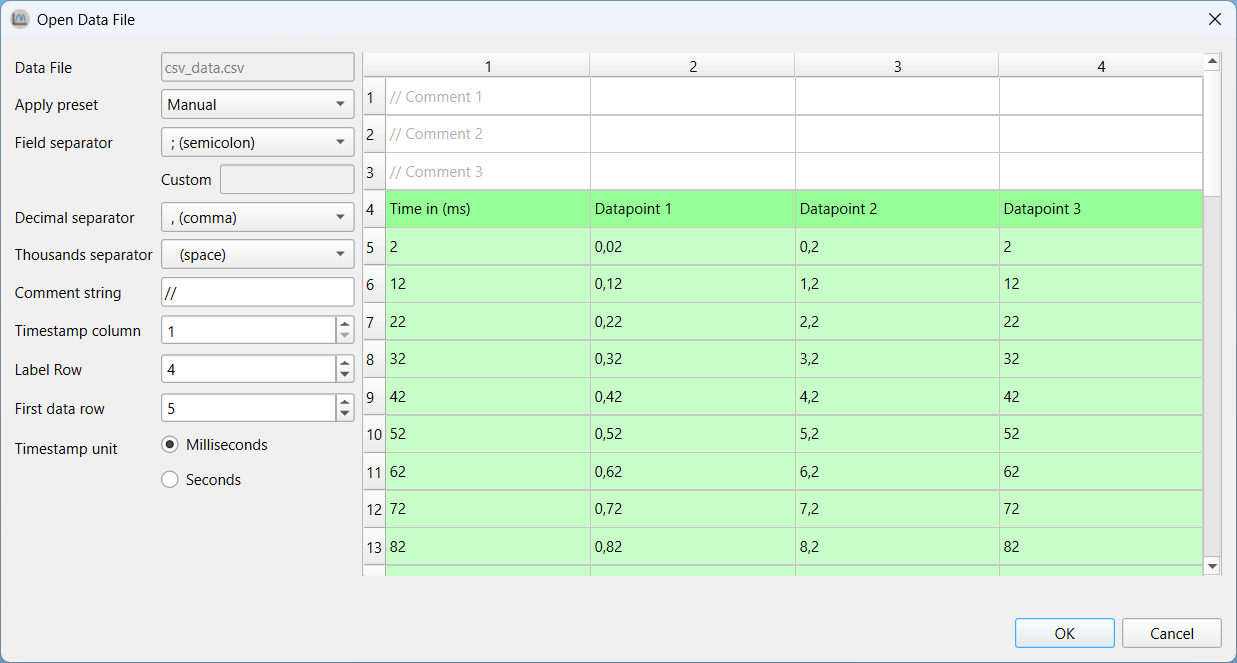
If the preview shows garbled data, adjust the separator settings manually:
Field separator: the character between columns (e.g.
;or,)Decimal separator: the character used for decimals (e.g.
.or,)Thousand separator: the grouping character (e.g.
.or
Set Timestamp unit to
msorsto match the unit in your file. ModbusScope always stores timestamps in milliseconds internally.If the file has header lines or the timestamp is not in the first column, adjust:
Comment string: lines starting with this string are skipped
Timestamp column: column index of the timestamp (1-based)
Label row: row number of the column headers
Data row: row number where data starts
Click OK.
Result: The data is displayed on the graph as if it were a live logging session.
Notes
CSV files exported by ModbusScope open without any manual configuration.
For files you open repeatedly with non-standard settings, save a preset to avoid reconfiguring each time. See Create CSV presets.